[How-to] Filmora free vs paid: Why That Monthly Price Isn't the Software
- Free tier: Yes
- Cheapest paid plan: US$4.17/mo and up
- Free quota: The trial includes all basic editing features, but exported videos …
- Last checked: 2026-10-24
Article last updated: 2026-10-18



Filmora is a desktop video editor for Windows and Mac. The free version is more generous than most people assume, and the price page is more confusing than it should be. Those two facts are connected: once you see what the free tier really does, you can decide calmly whether to pay — instead of panic-buying because a big monthly number is staring at you from the shop page.
This guide gets a complete beginner from “just downloaded it” to “finished a first video,” then shows you exactly where the paid wall sits and how to read the pricing without getting tricked.
What you get for free (and the one wall)
The free version gives you all the basic editing tools. You can import clips, cut and trim, add text and titles, drop in transitions, layer audio, and arrange everything on a timeline (the horizontal track where you line up clips in order). There is no time limit — the trial does not expire after a week or a month. You can keep using it.
There is exactly one wall: a watermark. A watermark is a semi-transparent Filmora logo stamped over your finished video. It appears when you export (render your project into a shareable video file), not while you edit. So you can learn the whole program, build a real project, and preview it clean inside the app. The logo only shows up on the file you hand to the world.
That matters for how you plan. If you are learning, testing the software, or editing something only you will watch, the watermark is irrelevant. If you need a clean file for a client, a channel, or a client-facing post, the watermark is the thing — and only a paid plan removes it.
What the data does not spell out: whether free-version exports are cleared for commercial use. Treat that as unconfirmed and check the official terms before you sell anything made on the free tier.
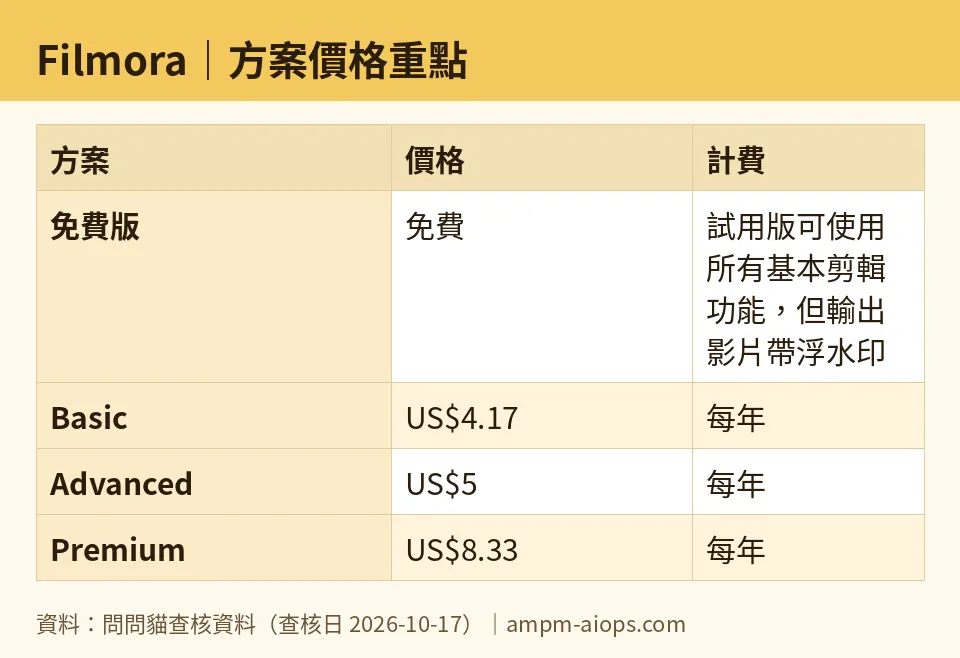
Figure: compiled by AMPM from its verified data (last verified 2026-10-17).
Your first edit, step by step
Here is the shortest path to a finished clip so the watermark question becomes concrete.
Download and open. Get Filmora from the official site (filmora.wondershare.com), install, and create a new project. Pick the aspect ratio that matches where the video will go — 16:9 for YouTube, 9:16 for Reels or Shorts.
Import your footage. Drag your video and audio files into the media area. Nothing has committed to the timeline yet; this is just your shelf of raw material.
Lay it on the timeline. Drag clips down to the timeline in the order you want. Play it. Use the split tool to cut out dead spots, then delete the bits you don’t need. This rough pass is 80% of editing.
Add one title and one transition. Pick a text preset, type your title, drag it onto a track above your video. Add a single transition between two clips. Resist the urge to add ten — restraint reads as skill.
Preview, then export. Watch the whole thing in the preview window first; it plays clean here. When you hit export, the watermark lands on the output file. That is your decision point, not a failure.
Common blockers and quick fixes:
- “My export has a logo on it.” Expected on free. Editing is free; a clean export is the paid feature. There is no free setting that removes it.
- “The AI feature asked for something.” Some AI tools draw on AI Credits (a metered allowance for AI-powered tasks). Those sit in the top paid tier, so a free user will hit a stop on the fancier AI features while ordinary editing keeps working.
- “It runs slow.” This is desktop software doing real rendering work. Close other heavy apps and keep source files on a fast drive.
- “I’m on a Mac — is it the same app?” Same app, different price. More on that below.
Reading the price page without getting fooled
This is where the editor’s pricing earns its reputation for confusion, and where our check matters most.
First, there is no monthly plan for the software. Every tier is billed annually — one payment for a year. The site shows per-month averages for comparison, but you cannot pay the editor month to month.
Second, the three tiers, as listed for Windows:
- Basic — US$49.99/year (an average of US$4.17/month). Mac version: US$69.99/year.
- Advanced — US$59.99/year (US$5.00/month average). Mac: US$79.99/year.
- Premium — US$99.99/year (US$8.33/month average). Mac: US$119.99/year. This is the one that bundles Advanced plus AI Credits plus Creative Assets (stock media, music, and effects packs you drop into projects).
Notice the pattern: the Mac version costs more than the Windows version at every single tier. If you’re pricing this on one platform and switching to the other later, that gap is real.
Now the trap. The pricing page surfaces a US$19.99/month figure prominently. That is not the editing software. It is the Creative Assets add-on — the stock media and effects library — sold on its own. A newcomer scanning the page can easily read that as “the editor costs US$19.99/month” and either overpay or walk away. It is neither the cheapest way in nor the software subscription. The software’s actual entry point is the annual Basic plan.
There is also a perpetual license on offer (a one-time purchase instead of a yearly fee). We have not listed its price here, so don’t assume the annual plans are your only option — but also don’t assume you know what the lifetime option costs from this piece.
🔍 AMPM exclusive check
What the vendor page does not make obvious, and what we confirmed on 2026-10-17:
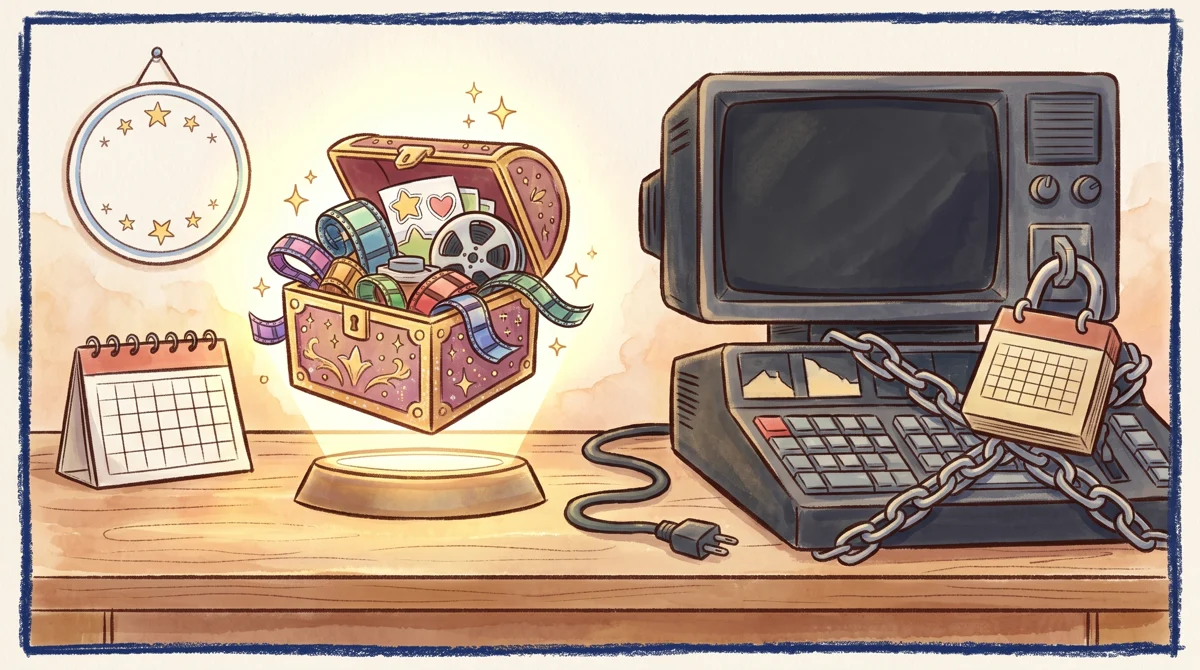
Illustration: The advertised monthly option only buys decorative asset accessories and leaves out the actual video editing machine entirely.
- The headline monthly price is an add-on, not the editor. The US$19.99/month on the shop page is Creative Assets — stock media and effects — not a subscription to the editing software. The software’s lowest real cost of entry is the annual Basic plan, not that monthly figure. This is the single most common misread, and the page does little to prevent it.
- The editor is annual-only. There is no month-to-month option for the software itself. The per-month numbers you see are averages of the yearly price, not a plan you can actually buy monthly.
- Mac costs more than Windows at every tier. The page doesn’t line the two platforms up side by side, so the gap is easy to miss until checkout.
- Free has no clock, only a watermark. The trial doesn’t expire; the only thing standing between you and a usable file is the logo on export.
Honest limit: Filmora entered our tracker as an automatic challenger candidate, and these figures have been through one verification round, not our full three-way manual cross-check yet. Our automated re-checks on 2026-10-16 and 2026-10-17 found no changes from the first read, and every number above matches the official page as of 2026-10-17. Free-tier commercial-use rights and the perpetual-license price are the two things we have not nailed down — confirm both on the official page before you rely on them.
Verdict: who should use it, who should skip it
Use the free version if you are learning to edit, testing whether Filmora suits you, or making videos only you (or a small private group) will watch. The no-expiry trial is a genuine free tool, and the editing feature set is complete. There is no reason to pay a cent until the watermark is actually in your way.
Pay for a plan if you need clean exports for anything public or client-facing — that is the one thing paying buys you first. Start with Basic unless you specifically want the AI tools and stock library, which live in Premium. Decide on your platform before you buy, because Mac carries a higher price at every tier.
Skip it if you need to pay month to month, or if a one-time purchase is a hard requirement and the perpetual-license price (which we haven’t verified) doesn’t work for you. And whatever you do, don’t let that US$19.99/month add-on talk you out of the tool or into the wrong line item — it isn’t the editor.
Bottom line for a beginner: download the free version, edit your first project today, and only open the pricing page once a watermark-free file is something you actually need. When you get there, ignore the big monthly number and look at the annual tiers.
Written: 2026-10-18 Price last verified: 2026-10-17 Tool last health-checked: 2026-10-18
🔗 Related on AMPM
📎 Sources
All prices and quotas in this article come from AMPM’s verified dataset for Filmora (last verified 2026-10-17); primary sources:
🐾 Meet the cats: AMO and PIMI

AMPM is a Taiwan-based AI-tool pricing watchdog. Our motto: ask before you subscribe. Two cats argue every tool from two sides:
- ☀️ AMO — the budget-minded cat. Always asks: is the free tier enough, and is paying actually worth it?
- 🌙 PIMI — the performance-minded cat. Cares about whether it works well, fast, and gets your job done.

When they are done arguing, you know whether to pay. Every number is checked by us, with the verification date at the end.
🐾 Our sister sites also checked
Read next
- Filmora Full breakdown: pricing, features and real-world limits
- Filmora Is the free quota enough?
- Filmora Alternatives
- Free plan limits for every AI tool we track