Ask Cat › AI Tool Summary › Opus Clip
[Review] Opus Clip Free Tier: 60 Credits, a Watermark, and Files That Vanish in 3 Days
- Free tier: There is
- Cheapest paid plan: US$15/mo and up
- Free quota: The free version (listed as Free forever, US$0 on the official …
- Last checked: 2026-10-06
Article last updated: 2026-10-07



Opus Clip turns long YouTube videos into short clips for TikTok, Shorts and Reels automatically, and it claims roughly 10 million users. The free tier is the first thing most people try, so the real question is simple: is the Opus Clip free tier worth using, or does it just waste your time before you hit a wall? We read the pricing page line by line, cross-checked it against the plan comparison table, and found three limits that are easy to miss until they cost you a finished clip.
What 60 credits actually buys you
The free plan is listed as “Free forever,” and it comes with 60 credits every month. Opus Clip’s own comparison table says 1 credit covers 1 minute of source video processed — so 60 credits is roughly an hour of raw footage run through the AI editor each month, not an hour of finished clips. For that, you get 1080p output, automatic reframing to 9:16 vertical, AI-generated captions with emoji and keyword highlighting, multi-language transcription, and direct formatting for social posting.
That’s a genuinely usable feature set for someone testing the tool. The catch is in how you get footage in: free accounts can only upload local video files, capped at 10GB per file. There’s no direct YouTube import on the free tier, even though pulling clips from YouTube is the product’s whole pitch. You also process at standard speed — paid plans jump the queue.
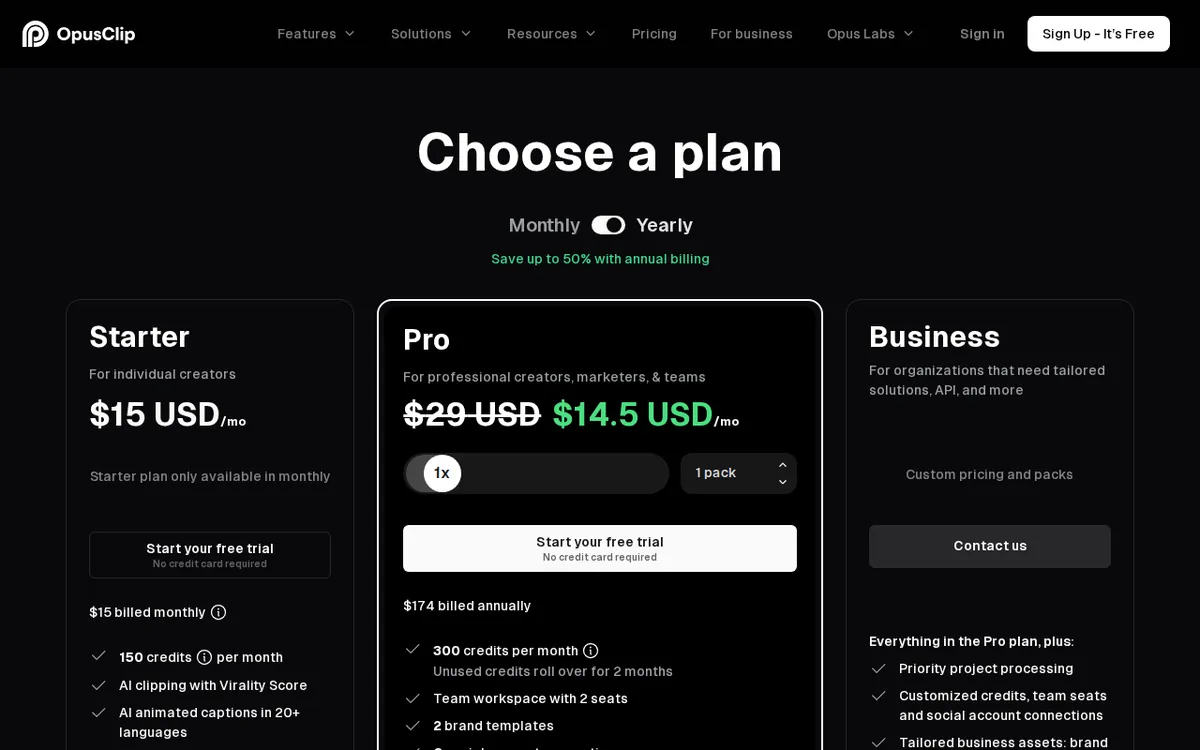
Figure: opus.pro official pricing page, captured 2026-10-07.
Three limits that bite
The pricing page is upfront about these, but they’re the kind of detail you skim past until you’re staring at a clip you can’t export:

Illustration: Locked editing tools, an indelible stamp on the frame, and a crumbling calendar highlight the rigid limitations of the free tier.
- Every free export carries a watermark. There’s no way around this without upgrading — even the cheapest paid tier, Starter at US$15/month, removes it.
- There’s no editing. Free accounts don’t get the timeline or text editor, can’t change fonts, can’t add B-roll (extra footage inserted to cover cuts), and can’t schedule posts. You get what the AI gives you, as-is.
- Clips and source media are only stored for 3 days. Opus Clip’s own wording is direct: “After 3 days, the clips will no longer be exportable.” Miss that window and the work is gone — you’d have to re-upload and re-process, burning more of your monthly 60 credits.
None of this is hidden, exactly. It’s just scattered across the pricing page in a way that’s easy to half-read.
Where the paid tiers go
If 60 credits and a watermark aren’t enough, Starter at US$15/month (billed monthly only — Opus Clip states plainly there’s no annual option for this tier) gives you 150 credits a month, watermark-free exports, one brand template, and access to the editor.
Pro runs US$29/month and adds 2 seats, 2 brand templates, 6 connected social accounts, AI-generated B-roll, exports to Premiere and DaVinci Resolve, post scheduling, and AI voiceover. Business is quote-only — Opus Clip doesn’t publish a price, so anyone needing custom credits, seats or API access has to talk to sales.
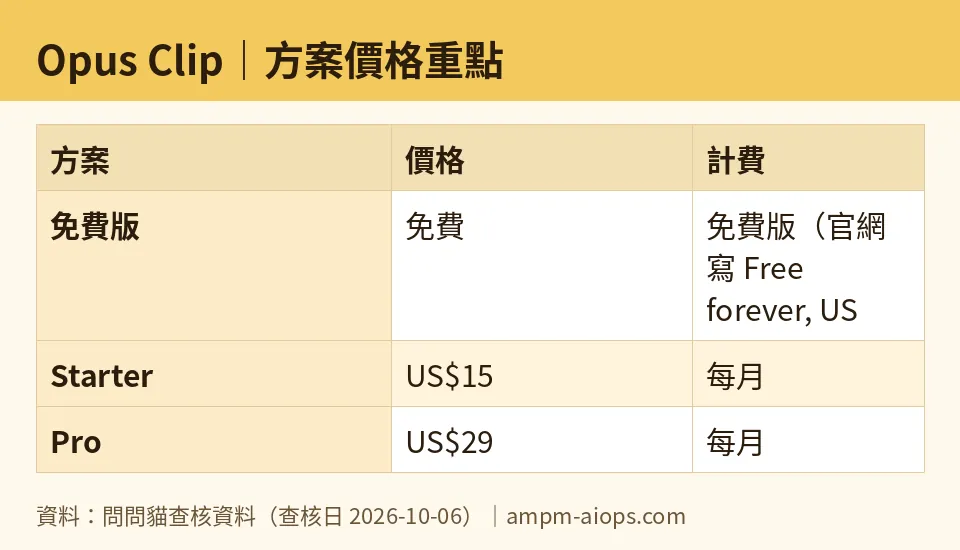
Figure: compiled by AMPM from its verified data (last verified 2026-10-06).
🔍 AMPM exclusive check
The free-tier limits above all match the official pricing page exactly — nothing exclusive there. But we caught something the vendor page doesn’t flag: its own annual-discount math for the Pro plan isn’t stable. On one page load, Pro’s annual billing showed as US$14.5/month (US$174/year total) with a “Save up to 50%” badge. On a second, separate load, the same annual option showed US$17.4/month (US$208.8/year total) with a “Save up to 60%” badge — a higher claimed discount attached to a higher price. That’s not a typo we can explain away; it looks like a live promotional discount that shifts the displayed rate without updating the percentage badge to match. If you’re about to commit to annual Pro billing, reload the pricing page and screenshot what you’re actually being charged before entering payment details — don’t trust the “up to” percentage shown.
Separately, the site never states whether unused free-tier credits roll over or when exactly the monthly 60-credit count resets, and it doesn’t address commercial usage rights for free-tier output at all. Those are gaps in the vendor’s own disclosure, not something we could verify either way.
☀️ AMO, the budget-minded cat

Sixty credits a month is enough to actually learn what Opus Clip does, and “free forever” with no credit card required for the trial means there’s no clock forcing a decision. For someone testing one YouTube video a month, an hour of source footage processed into a handful of short clips costs nothing.
But the free tier is built to be outgrown fast, not to be a long-term workflow. The watermark alone kills it for anyone posting to a brand account — a OpusClip logo stamped on every clip reads as unfinished content, not polish. The 3-day storage window is the sharper problem: if you’re not exporting within 3 days, the clip is just gone, and re-processing eats into the same 60-credit budget. No local YouTube import also means manual downloading and re-uploading, which adds friction free tools are supposed to remove.
Is upgrading worth it? Starter at US$15/month buys 150 credits (2.5x the free allotment), kills the watermark, and unlocks the editor — for anyone posting more than a couple of times a month, that’s the real break-even point, not Pro. Pro’s extra seats, B-roll AI and Premiere export are overkill for a single creator on a budget; Starter is the rational first upgrade, if any.
🌙 PIMI, the performance-minded cat

Does the free tier actually do the job well? The AI editing itself — auto-reframing, captioning with keyword highlighting, multi-language transcription — runs at the same quality tier as paid plans; Opus Clip doesn’t gate output quality behind a paywall, only speed and extras. Free users process at standard priority, meaning paid subscribers’ jobs run ahead of yours in the queue. For a one-off clip that’s a minor annoyance; for anyone on a daily posting schedule, it’s a real bottleneck.
The bigger performance ceiling is the lack of an editor. AI auto-cuts are good at finding a hook, but they’re not always right, and the free tier gives you zero ability to adjust a cut, swap a caption style, or drop in B-roll to cover an awkward transition. That’s the difference between a usable social clip and a polished one. Pro’s AI B-roll (3 assets per month) and Premiere/DaVinci export matter here — they’re the first tier where you can actually finish a clip somewhere other than inside Opus Clip’s own box.
The 10GB local-upload cap on free is generous enough for most short-to-medium YouTube videos, so file size isn’t the constraint — the inability to pull straight from YouTube is. If your workflow is “grab the link, get a clip,” the free tier forces an extra manual step every single time, which adds friction to exactly the automation it’s selling.
For genuine throughput — multiple videos a week, brand accounts, scheduled posting — Pro’s unlimited processing and 29-day storage window solve the two things that actually break a free-tier workflow: the queue priority and the 3-day deletion clock.
Verdict: who should use it, who should skip it
Use the free tier if you’re trying Opus Clip for the first time, posting occasionally, and don’t mind a watermark or a 3-day export deadline. Sixty credits a month, with no credit card on the free trial, is a fair way to see if the AI editing actually fits your footage before paying anything.
Skip straight to Starter (US$15/month) if you’re posting regularly enough that the watermark or the missing editor is a dealbreaker — 150 credits and editor access is the realistic minimum for anything you’d put a brand name behind.
Go Pro (US$29/month) only if you need multi-seat collaboration, AI B-roll, or a path into Premiere or DaVinci for a final polish pass — otherwise it’s more plan than a single creator needs. And if you’re negotiating credits, seats or API access at scale, Business is quote-only, so budget for a sales conversation, not a sticker price.
Written: 2026-10-07 Price last verified: 2026-10-06 Tool last health-checked: 2026-10-07
🔗 Related on AMPM
📎 Sources
All prices and quotas in this article come from AMPM’s verified dataset for Opus Clip (last verified 2026-10-06); primary sources:
🐾 Meet the cats: AMO and PIMI

AMPM is a Taiwan-based AI-tool pricing watchdog. Our motto: ask before you subscribe. Two cats argue every tool from two sides:
- ☀️ AMO — the budget-minded cat. Always asks: is the free tier enough, and is paying actually worth it?
- 🌙 PIMI — the performance-minded cat. Cares about whether it works well, fast, and gets your job done.

When they are done arguing, you know whether to pay. Every number is checked by us, with the verification date at the end.
🐾 Our sister sites also checked
Let's take a look at these
- Opus Clip Comprehensive Introduction: Pricing, Features, and Actual Limitations
- Opus Clip Is the free quota enough?
- Opus Clip Alternatives
- Comprehensive Free Quota List for All Tools