[How-to] Photoroom free usage limits 2026: How Many Product Shots Before You Hit the Wall?
- Free tier: Yes
- Cheapest paid plan: US$12.99/mo and up
- Free quota: 100 exports per month (25 per week); includes background removal, …
- Last checked: 2026-10-24
Article last updated: 2026-10-17



Photoroom is a background-removal and product-photo editor. You drop in a messy phone snapshot, it cuts out the object, and you drop a clean backdrop behind it. For anyone listing products online, that is most of the job done.
The question this piece answers is narrow and practical: can you run a small store on the free tier alone, and where exactly does it stop being enough? I’ll walk through the whole flow — upload, cut-out, background swap, export — then show you the ceiling and what you pay to lift it.
One honesty note up front, because it matters later: the free monthly cap is a real number, but it does not appear on Photoroom’s own pricing page. It comes from third-party reviews. I’ll come back to that in the exclusive check.
What the free tier actually does
Free means free here — you don’t pay to open an account and start cutting out images.
The output budget is 100 outputs per month, with a weekly cap of 25. An “output” is one finished image you export or save — not every click or preview, but each time you take a final picture out of the app. So the limit isn’t 100 edits; it’s 100 saved results.
Those 25 per week matter as much as the 100 per month. You can’t bank unused output and dump it all in the last week before a big launch. The pace is built in. If you shoot 30 products on a Sunday, five of them wait until the next week.
What the free tier includes:
- Background removal — the core feature, the reason most people are here.
- Basic retouching — the light clean-up tools.
- Templates — ready-made layouts for product and social images.
What it does not include: AI generation. That’s the feature where you type a prompt and the tool invents a new scene or backdrop from scratch. On the free tier you remove and replace; you don’t generate. Keep that distinction in your head, because it’s the single biggest reason people upgrade.
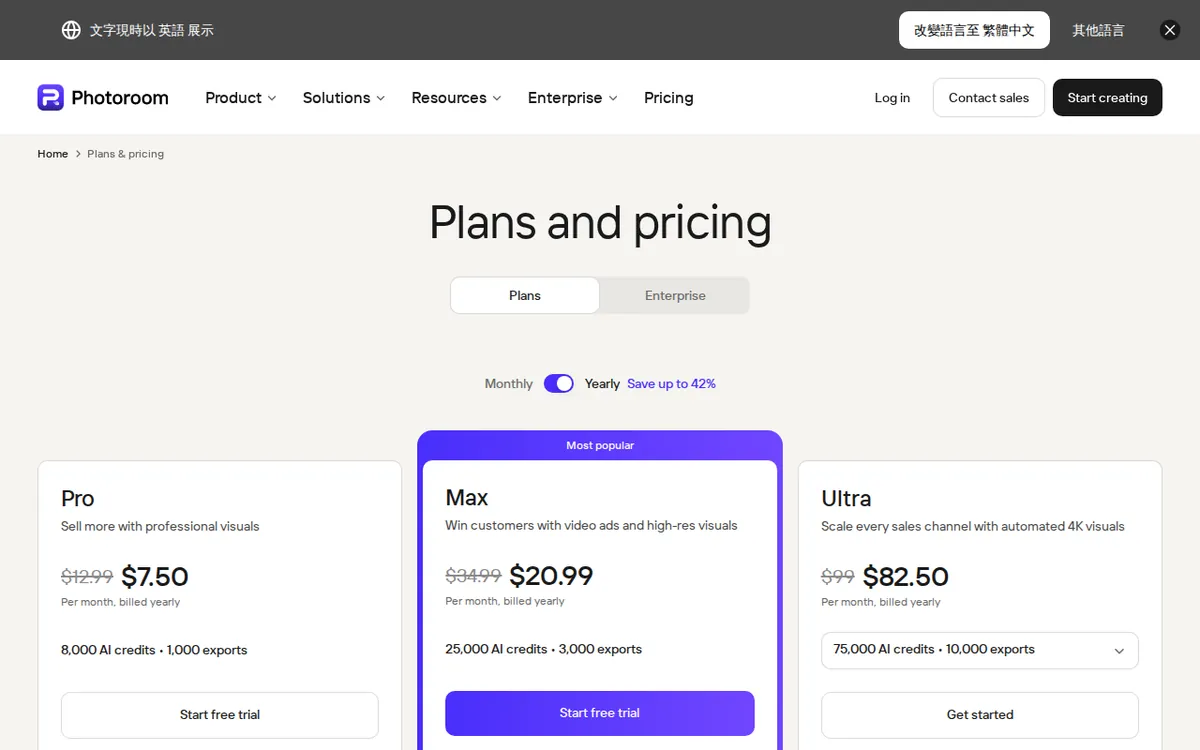
Figure: photoroom.com official pricing page, captured 2026-10-17.
From upload to finished shot: the steps
Here’s the flow a first-time user follows. It’s the same on web and mobile.
1. Upload your photo. Shoot the product against any background — a table, a wall, whatever. Good even lighting does more for the cut-out quality than any setting inside the app. Avoid shadows that blend the object into the surface behind it.
2. Let it remove the background. Photoroom cuts out the object automatically. For most clean-edged products — a bottle, a box, a shoe — this is instant and clean. You don’t do anything.
3. Fix the edges if needed. Hair, fur, transparent glass and fine straps are where auto cut-outs struggle. Use the manual erase/restore brush to add back a bit the tool shaved off, or wipe away a scrap it kept. This is the step beginners skip and then wonder why the result looks cheap.
4. Add a background. Pick a solid color, a studio-style backdrop, or a template. For marketplace listings, plain white is usually what you want, and it’s one tap. For social posts, the templates give you a framed layout fast.
5. Export. This is the moment that spends one of your 100 outputs. Check the image at full size before you save, so you don’t burn an output on a version you’ll redo.
That’s the loop. Once you’ve done it twice it takes under a minute per image.
Common blockers, and how to get past them
“The edge looks rough / it chewed off part of my product.” Zoom in before exporting and run the restore brush along the problem edge. On dark products shot against dark backgrounds the tool guesses badly — reshoot against a contrasting surface rather than fighting it in software.
“I’ve run out this week but not this month.” That’s the 25-per-week cap doing its job. Nothing’s broken. You either wait for the week to roll over or move to a paid plan, which lifts the limit.
“I want to type a prompt and generate a scene.” You can’t on free — AI generation sits behind the paid plans. If a generated background is the thing you actually came for, the free tier was never going to be enough, and you should price the upgrade from day one instead of hitting the wall mid-project.
“Which export settings?” For online listings, plain background and the standard size is fine. Don’t over-think resolution for a first store; the cut-out quality is what buyers notice, not the pixel count.
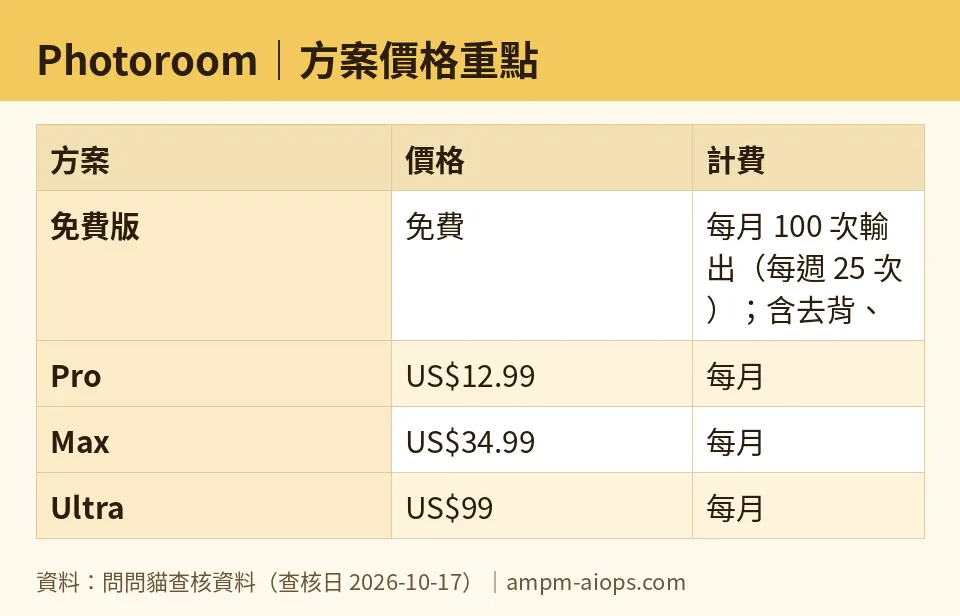
Figure: compiled by AMPM from its verified data (last verified 2026-10-17).
What the paid plans cost
If 100 a month isn’t enough, or you need AI generation, here are the tiers.
- Pro — US$12.99 per month. Billed annually it works out to US$7.50 per month (US$89.99 per year). First upgrade comes with a 7-day free trial.
- Max — US$34.99 per month. An annual option is also offered.
- Ultra — US$99 per month. Billed annually it averages US$82.50 per month (US$990 per year).
- Enterprise — quote only; you contact Photoroom for a price.
I’m not going to multiply any monthly figure into a yearly one — where Photoroom publishes a yearly price I’ve quoted it, and where it doesn’t, I’ve left it alone. For Max, the data lists a monthly price and says an annual plan exists, but gives no annual number, so I’m not inventing one.
The 7-day trial on first Pro upgrade is the low-risk way to test whether paid output volume and the generation tools are worth it for you. Use the trial during an actual busy week, not a quiet one, or you learn nothing.
🔍 AMPM exclusive check
Two things the vendor page does not spell out, and one caution.
First, the free limit. The 100 outputs per month / 25 per week figure is not printed on Photoroom’s official pricing page — it comes from third-party reviews, and we’re flagging that rather than presenting it as gospel from the vendor. The breakdown of what’s included (background removal, basic retouching, templates) and what’s excluded (AI generation) is the part that decides whether free works for you, and it’s easy to miss because the pricing page leads with the paid tiers.
Second, the caution. Photoroom entered our tracker as a challenger candidate and its data has been through one automated round only — it has not yet had our full three-way manual cross-check. The price and quota numbers above matched the official site on our checks across 2026-10-15, 2026-10-16 and 2026-10-17, so they’re stable so far. But the free cap specifically, and any commercial-use terms, should be confirmed against the live site at the moment you sign up, because that’s the one number the vendor itself doesn’t publish and could change without a visible note.
Everything else below the free-cap line — the Pro, Max and Ultra prices — matched the official pricing page on 2026-10-17.
Verdict: who should use it, who should skip it
Use the free tier if you’re a small or new store processing up to 100 product images a month, your work is cut-out-and-replace rather than generate-from-a-prompt, and you can live with the 25-a-week pace. For a lot of solo sellers, that’s the whole need, and you pay nothing.
Go to Pro if you blow through the weekly cap often, or you want AI generation. Start on the 7-day trial, during a real workload, before committing.
Look at Max, Ultra or Enterprise if you’re a team or a high-volume operation — but the data here doesn’t break down what separates those tiers feature by feature, so treat the price as the starting question and confirm the specifics with Photoroom directly.
Skip Photoroom if generated backgrounds are your main reason for showing up and you don’t want to pay — the free tier won’t do that, full stop.
Written: 2026-10-17 Price last verified: 2026-10-17 Tool last health-checked: 2026-10-17
🔗 Related on AMPM
📎 Sources
All prices and quotas in this article come from AMPM’s verified dataset for Photoroom (last verified 2026-10-17); primary sources:
🐾 Meet the cats: AMO and PIMI

AMPM is a Taiwan-based AI-tool pricing watchdog. Our motto: ask before you subscribe. Two cats argue every tool from two sides:
- ☀️ AMO — the budget-minded cat. Always asks: is the free tier enough, and is paying actually worth it?
- 🌙 PIMI — the performance-minded cat. Cares about whether it works well, fast, and gets your job done.

When they are done arguing, you know whether to pay. Every number is checked by us, with the verification date at the end.
🐾 Our sister sites also checked
Read next
- Photoroom Full breakdown: pricing, features and real-world limits
- Photoroom Is the free quota enough?
- Photoroom Alternatives
- Free plan limits for every AI tool we track